 FnOLens
Install FnOLens
Install FnOLens from the Chrome Web Store (Google Chrome) or Microsoft Edge Add-ons (Microsoft Edge). The settings page opens by itself. To open it later, right-click the FnOLens icon in the toolbar and choose Options.
Tip: pin FnOLens to the toolbar. Click the puzzle-piece icon, then the pin next to FnOLens.
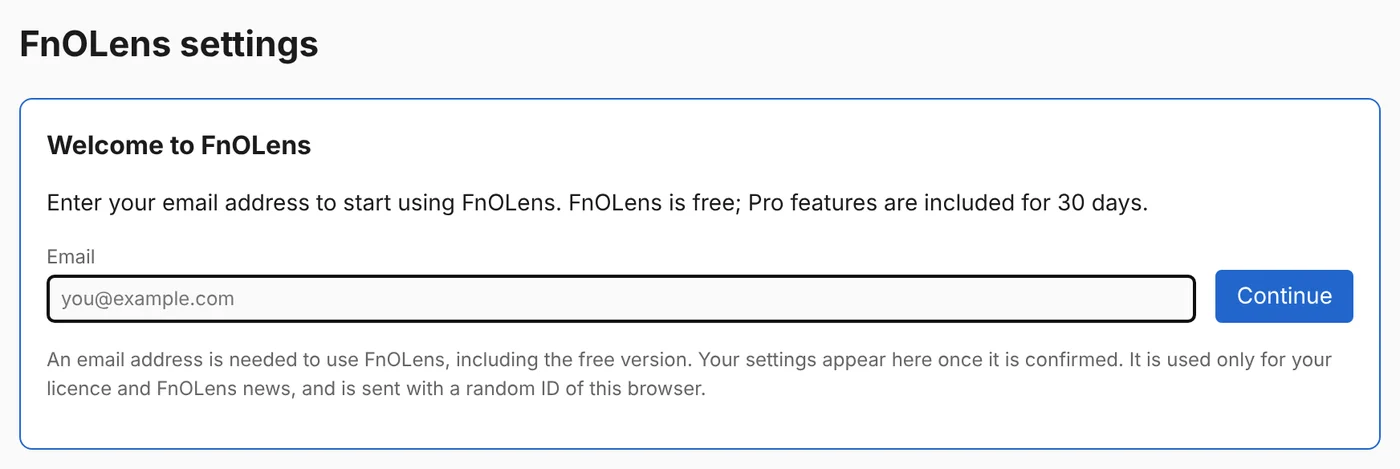
Enter your email
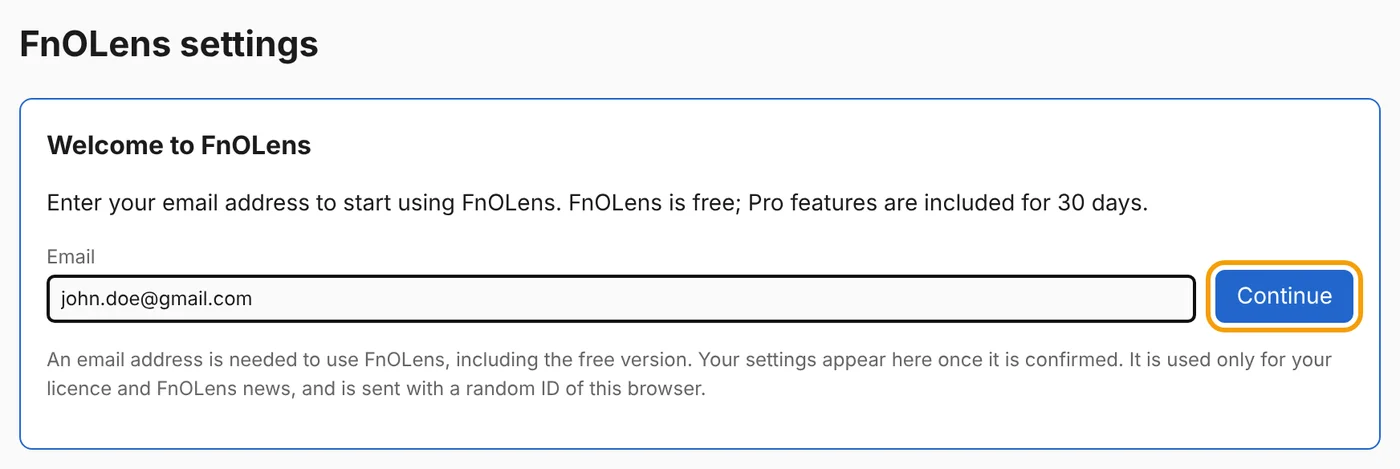
Type your email address and click Continue. An email address is needed for every user, including the free version. It is used only for your licence and FnOLens news.
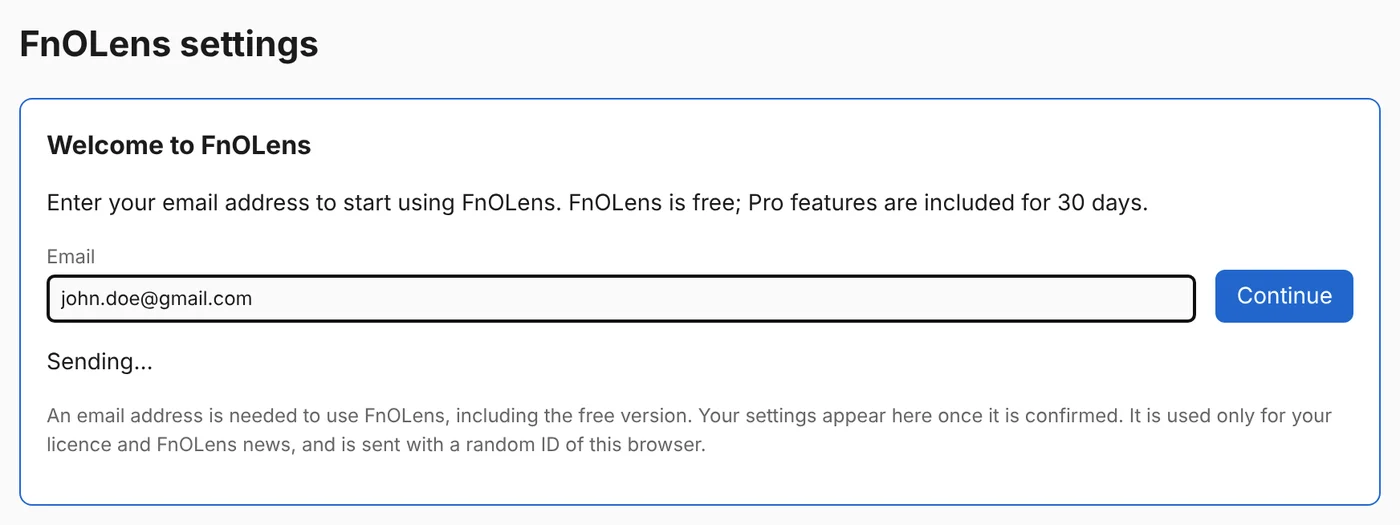
FnOLens shows Sending… while it emails you a code.
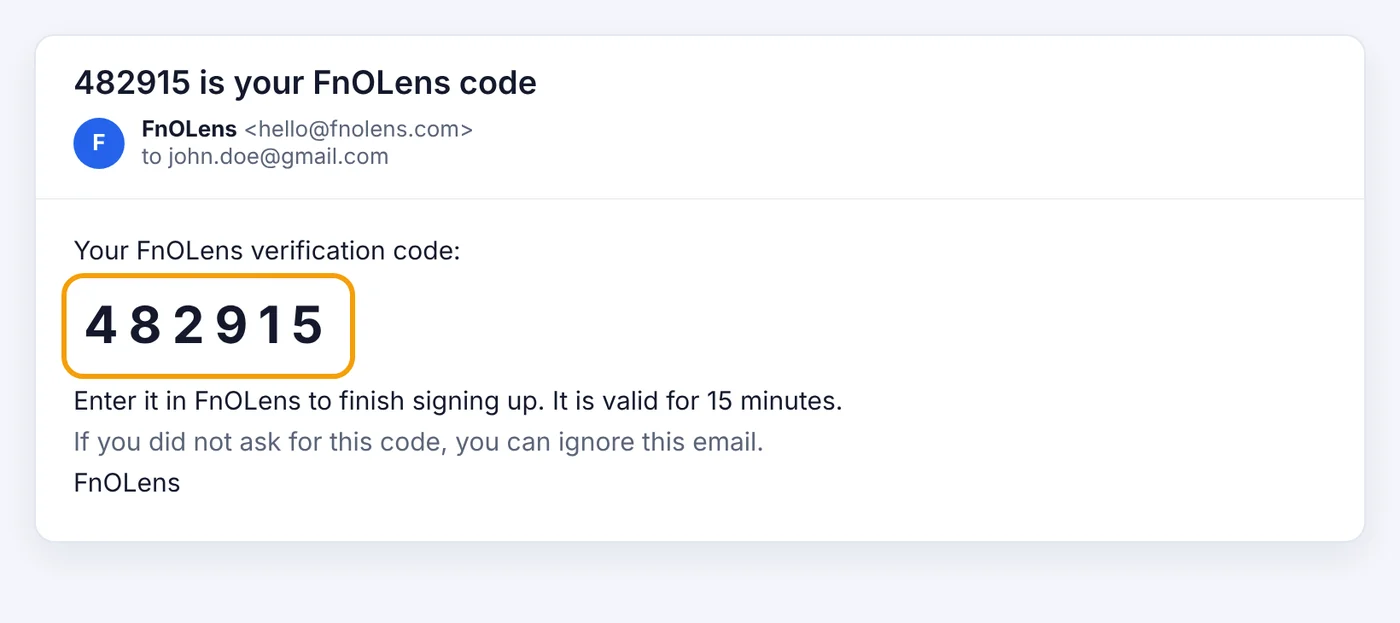
Get the 6-digit code
Open the email from FnOLens <[email protected]> with the subject "… is your FnOLens code". It usually arrives within a minute; check your spam folder if you don't see it. The code is valid for 15 minutes.
Verify the code
Type the 6-digit code and click Verify.
- Send a new code sends another one (after 60 seconds).
- Use another email goes back to step 2.
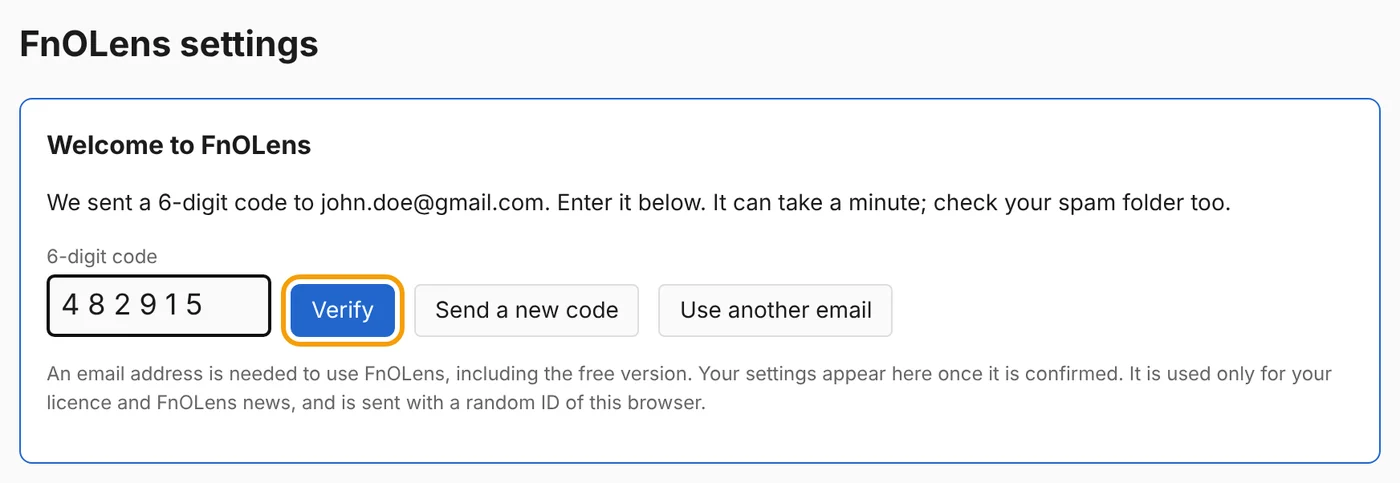
After the code is confirmed, the rest of the settings appear.
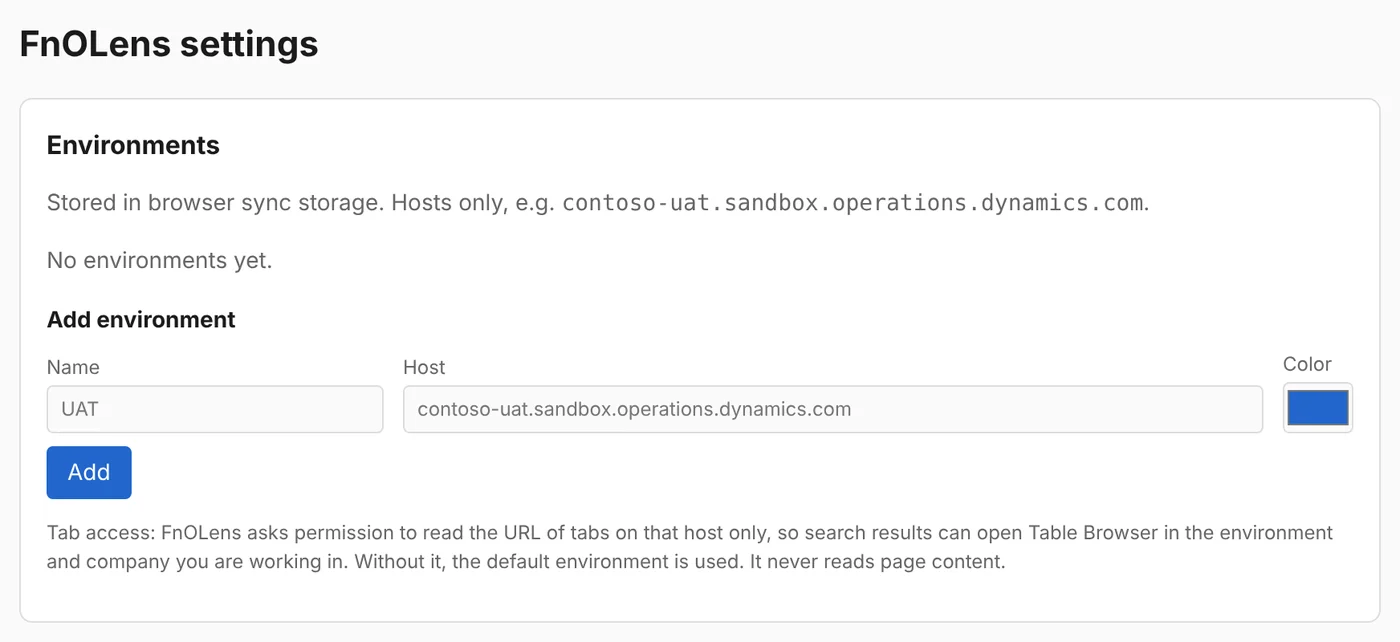
Add your D365 environments
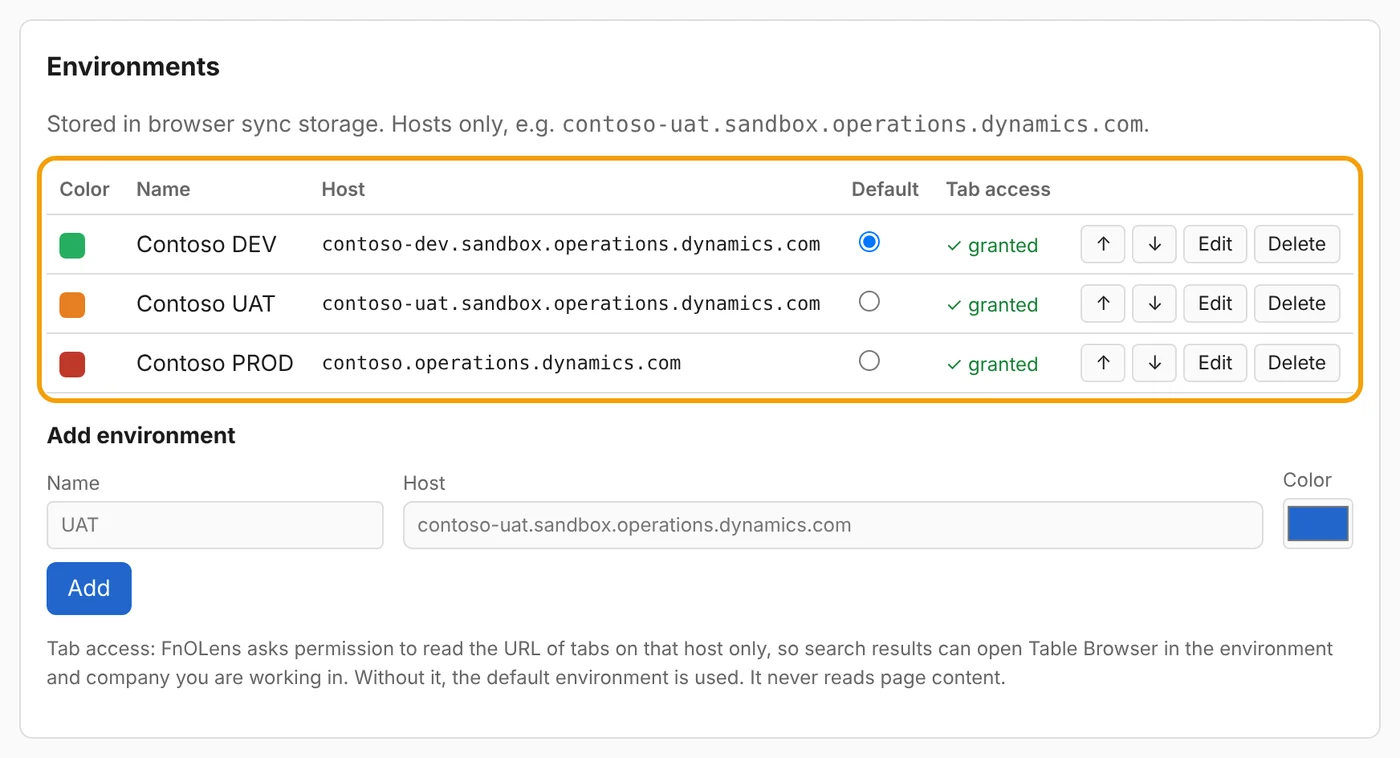
Under Add environment, enter:
- Name: what you call it, for example Contoso DEV, UAT or PROD.
- Host: the environment's address. You can paste the whole browser address, such as
https://contoso-dev.sandbox.operations.dynamics.com/; FnOLens keeps only the host. - Color: a colour to tell environments apart.
Then click Add.
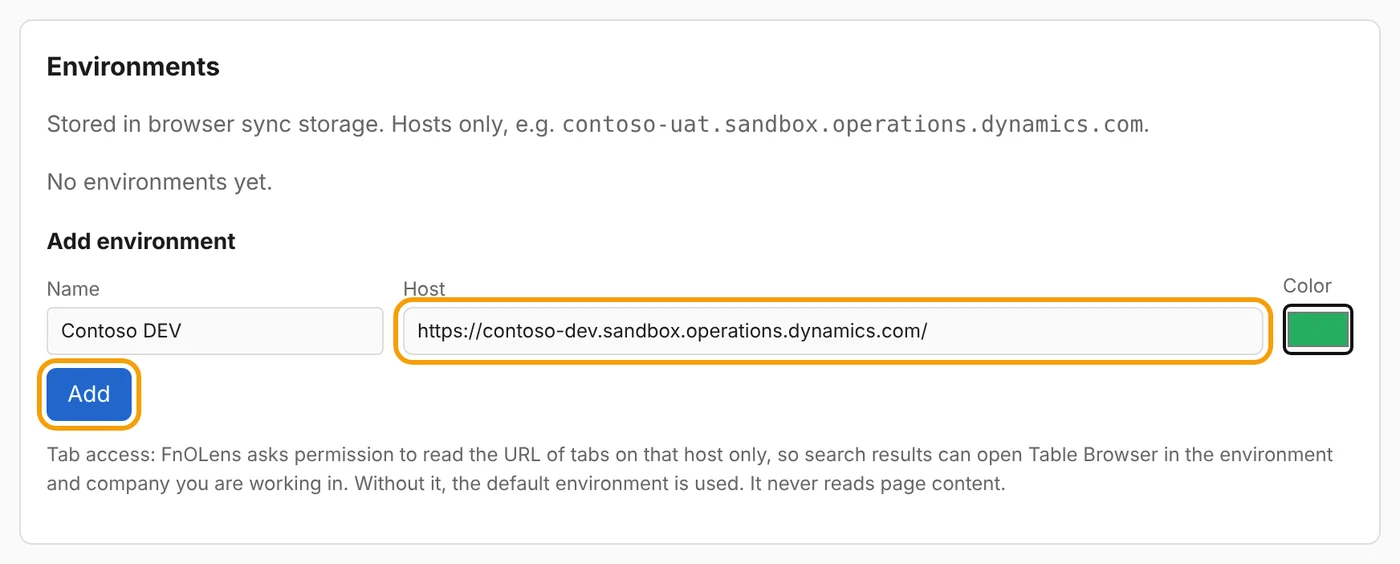
Your browser asks FnOLens for access to that environment's address. Click Allow. FnOLens uses it only to read the address of the page you are on (environment, company, page) and, when you click Show on page or Pick, to find a field on the page. It never changes data in D365.
The environment appears in the list with ✓ granted under Tab access.
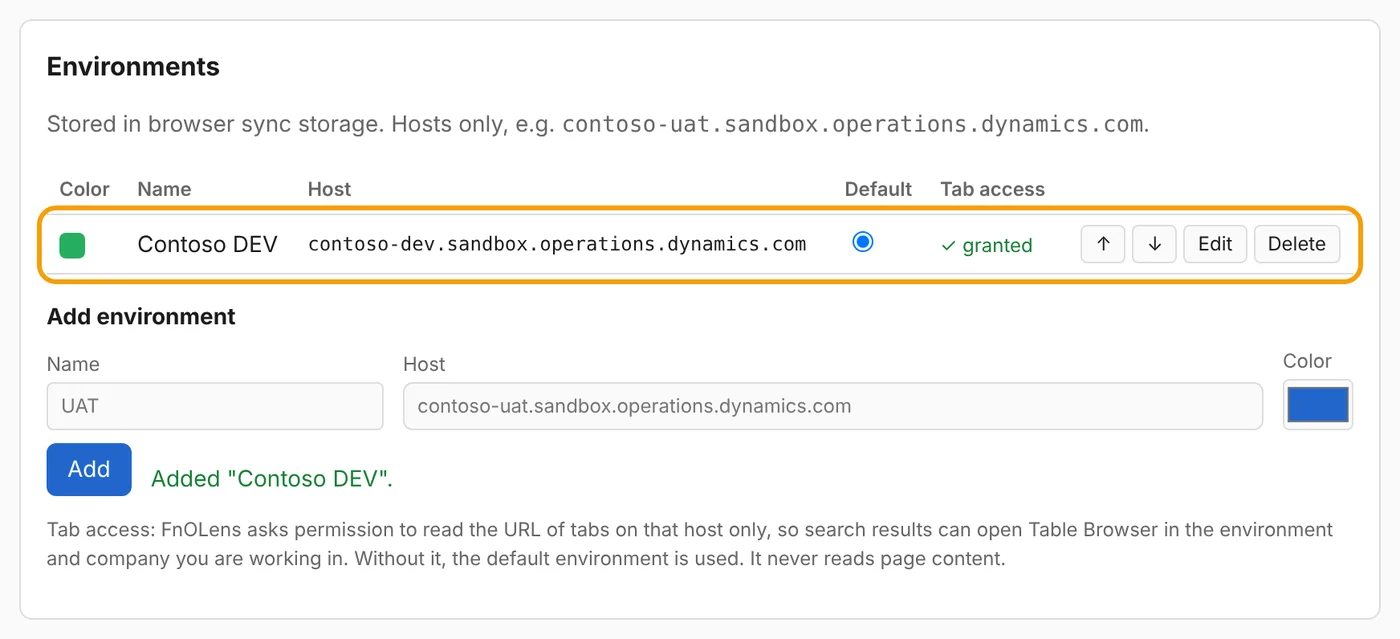
Add your other environments the same way. Use the arrows to change their order and the radio button to choose the default environment.
Check that FnOLens is ready
Scroll down:
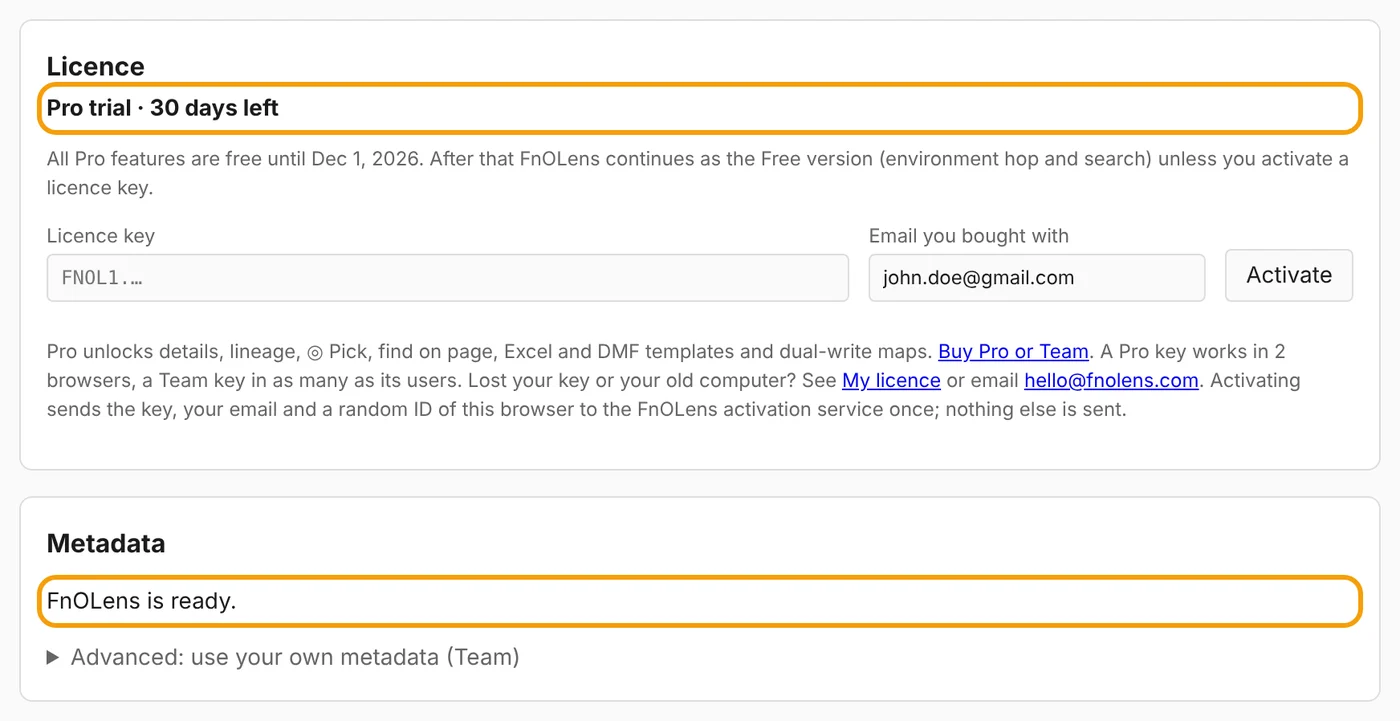
- Licence shows Pro trial · 30 days left. All Pro features are free for 30 days. After that FnOLens keeps working as the Free version (environment hop and search) unless you activate a licence key here.
- Metadata shows FnOLens is ready. The standard D365 metadata is set up automatically the first time; this can take up to a minute.
Start using FnOLens
Open any page of D365 Finance & Operations.
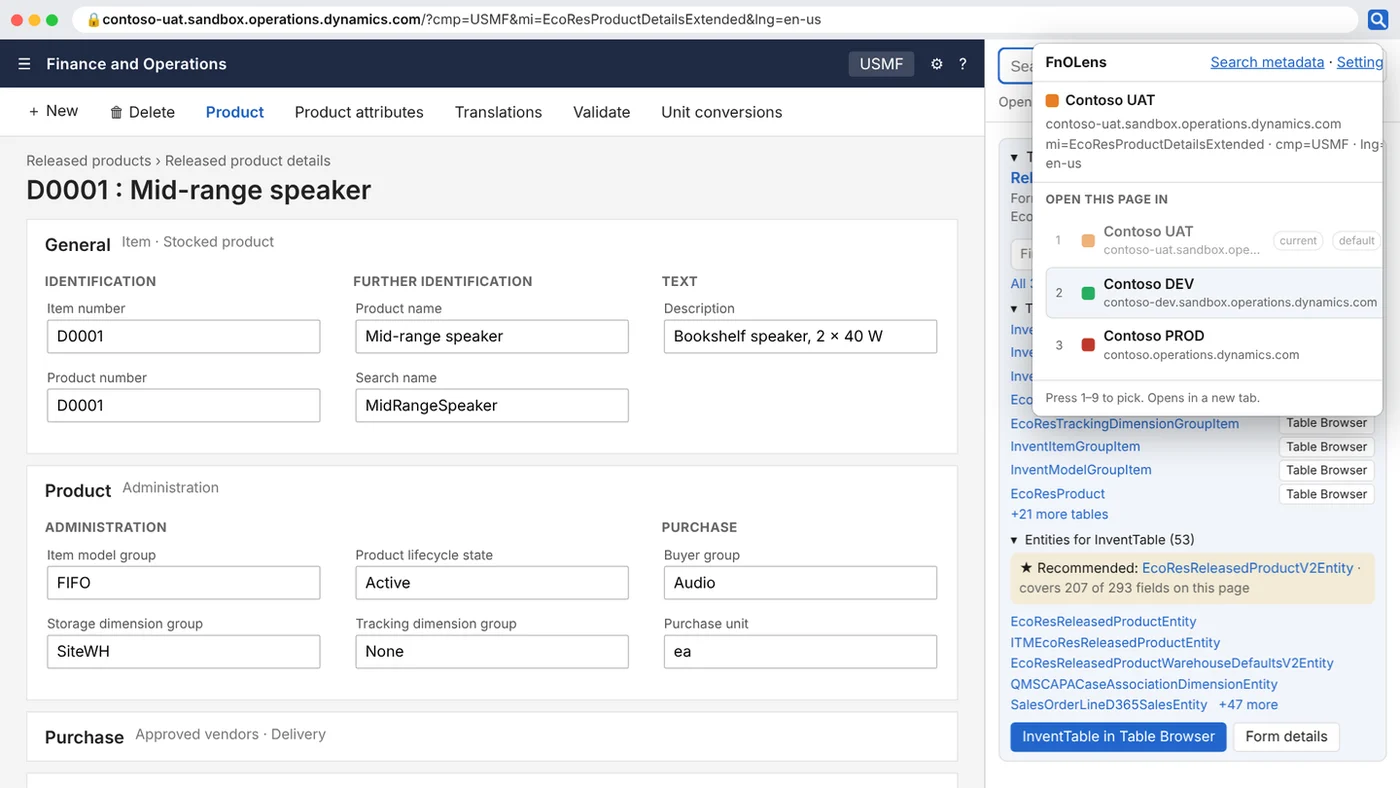
- Click the FnOLens icon (or press Alt+Shift+H) to open the same page in another environment.
- Press Alt+Shift+F, or right-click the icon → Open side panel, to search tables, fields, data entities and forms and to see what is on the page you are on.
See all features for what else FnOLens does. Questions: [email protected].